
Overview
Once Play With ASL is live in your Brightspace course, you add the activity, students launch into the Play With ASL: School Edition app, and scores can return to your gradebook. This guide is the teacher path, not LMS registration.
Audience: teachers using Brightspace (D2L), after your LMS admin has registered and deployed Play With ASL.
The flow at a glance
-
Add
Place a Play With ASL link in your course
-
Choose
Pick the activity students will practice
-
Students play
They finish in the School Edition app
-
You see scores
Results sync back to Brightspace
Before you start
- Your LMS admin has registered Play With ASL as an LTI 1.3 Advantage tool and deployed it to your course.
- You do not need a separate Play With ASL password. Brightspace signs you in.
- You do not need any of the registration values from the admin guide. Those stay with your LMS admin.
- Students need the School Edition app (App Store or Google Play) after they launch from Brightspace.
- Students also need an active Play With ASL seat through your school’s license. Launching from Brightspace signs them in; it does not grant gameplay by itself.
- Tell students to launch from the course link every time, not a bookmark, so grades can sync.
How it works
| Step | Who | What happens |
|---|---|---|
| 1 | You | Add Existing → Play With ASL: Curriculum Wizard |
| 2 | You | Pick a preset, set grading, Add to Course → an LTI link |
| 3 | Student | Open Link → handoff page (QR code or magic link, or Open Play With ASL) → School Edition app |
| 4 | Brightspace | Score syncs to Grades via Assignment and Grade Services (AGS 2.0) |
Coral callouts in the screenshots mark click targets. Captures are from a live D2L sandbox; your campus theme may differ slightly.
1. Add Play With ASL to a course
Option A — Content (most common)
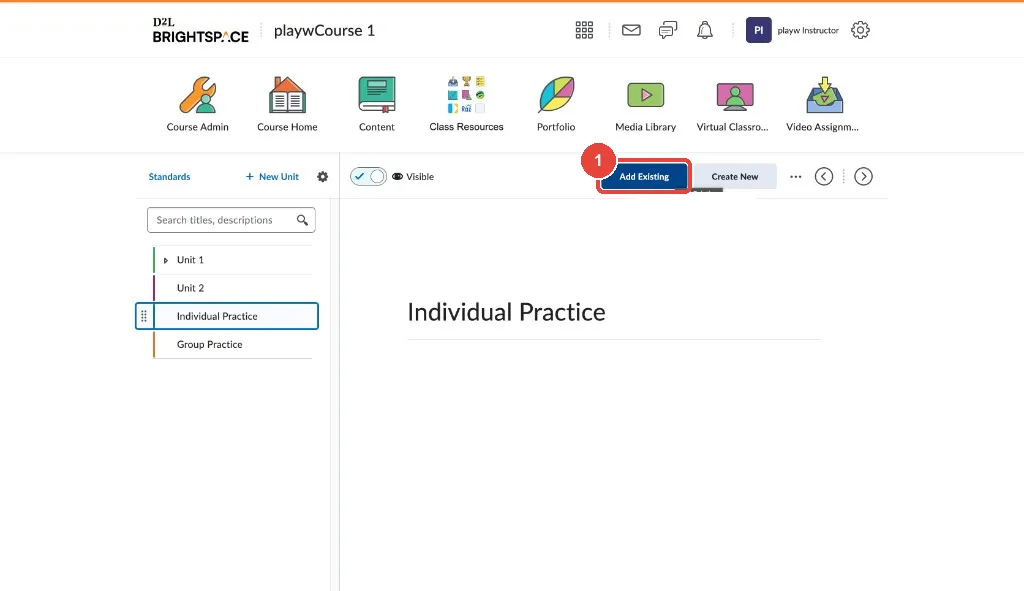
- Open your course and go to Content.
- Select the module where the activity should appear (for example, a practice unit).
- Click Add Existing.
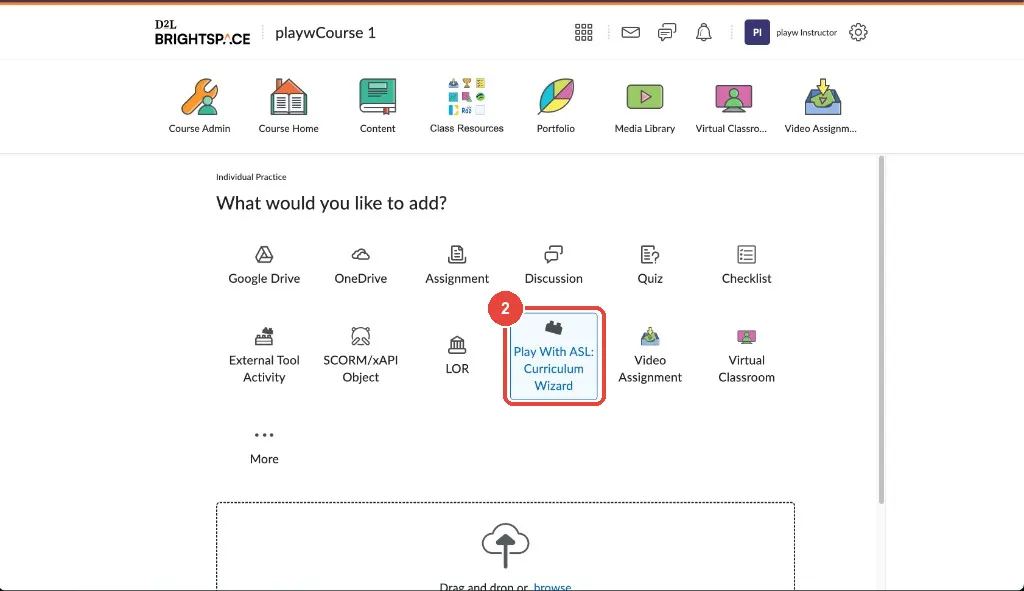
- In What would you like to add?, choose Play With ASL: Curriculum Wizard.
Option B — Assignment (graded list)
If your LMS admin enabled the Assignment placement, you can also attach Play With ASL as an external tool from Assignments. Confirm the exact path with your LMS admin if your campus uses that placement.
2. Open the Curriculum Wizard and pick an activity
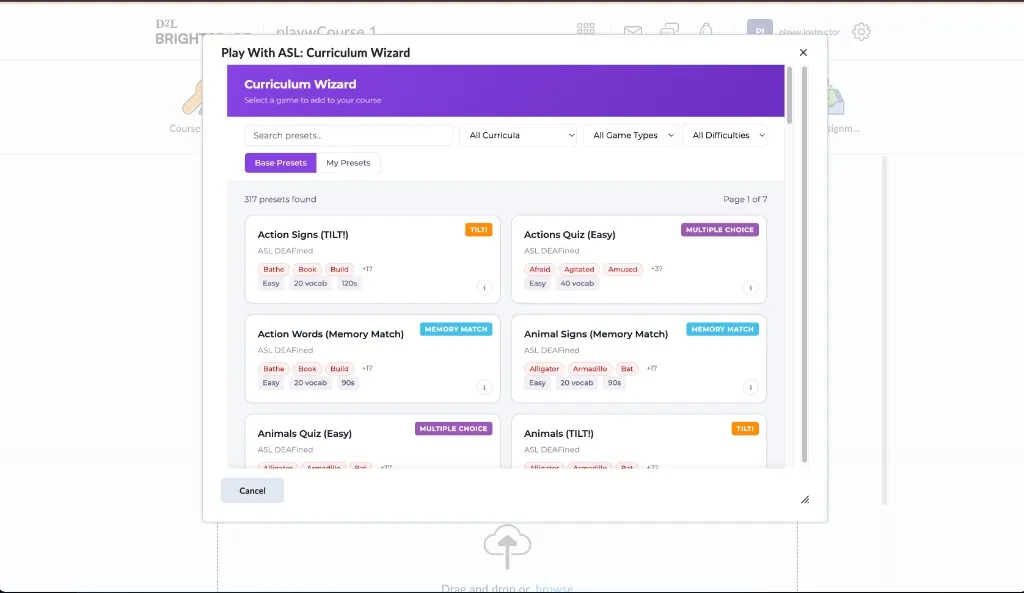
The Curriculum Wizard opens as a Brightspace modal. Browse or search presets, then configure grading before sending the link back to your course.
- Search or filter presets (curriculum, game type, difficulty).
- Select a preset.
- Set assignment title, grading mode, attempts, and related options.
- Click Add to Course.
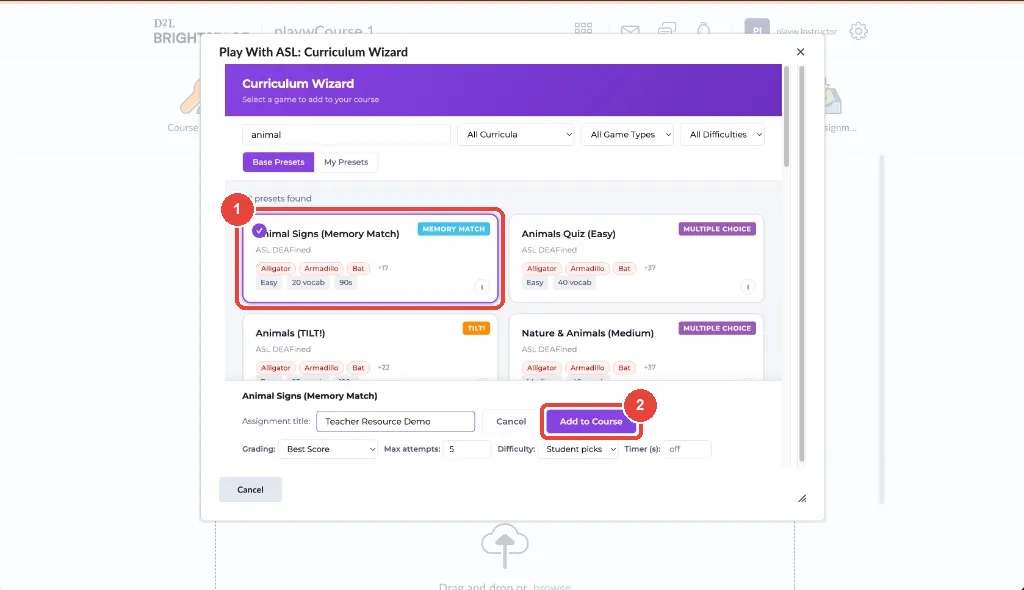
Brightspace creates an LTI content item (a link), not an embedded game.
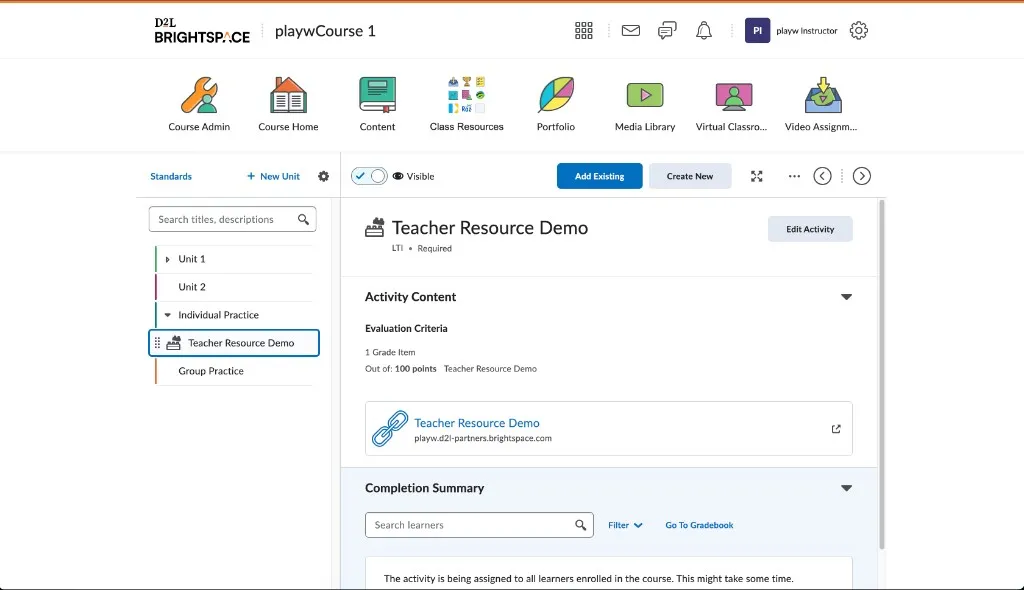
3. What students see when they launch
Students open the same content item from their Brightspace course. They do not see the game inside the LMS.
- In Content, they select the assignment (for example, under Individual Practice).
- Brightspace shows Open link in a new web browser tab → Open Link.
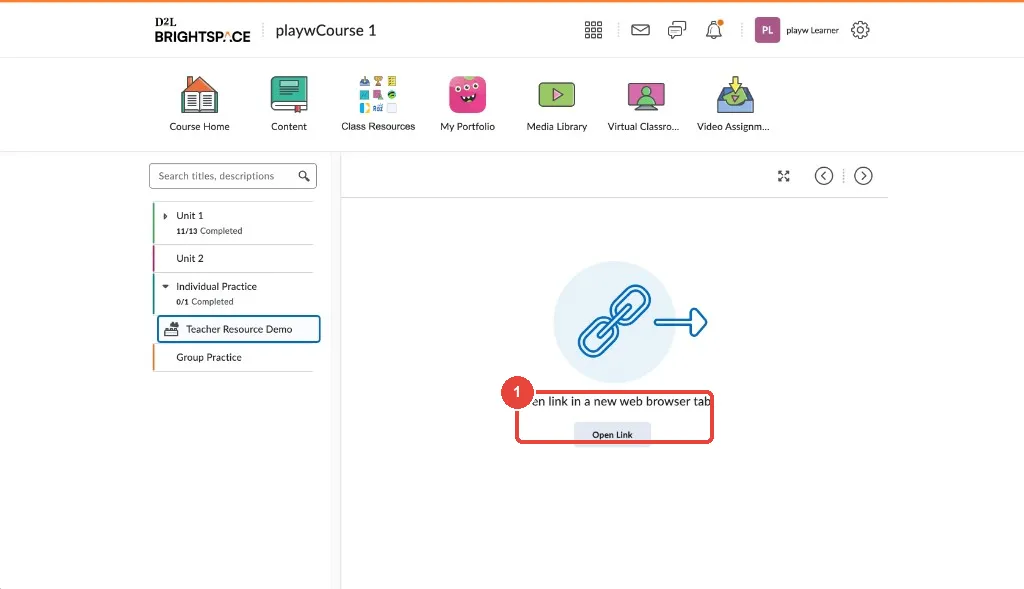
That opens the Open Play With ASL handoff page:
| Device | What the student does |
|---|---|
| Computer / desktop browser | Scan the QR code with their phone’s camera, or use Copy magic link. The magic link expires in about five minutes. |
| Phone or tablet | Tap Open Play With ASL — the School Edition app opens. |
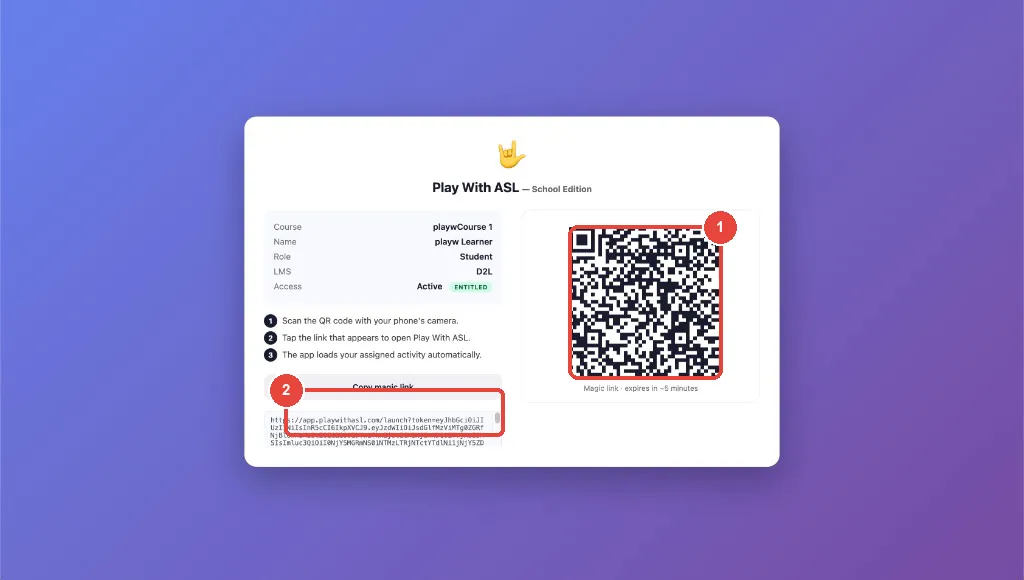
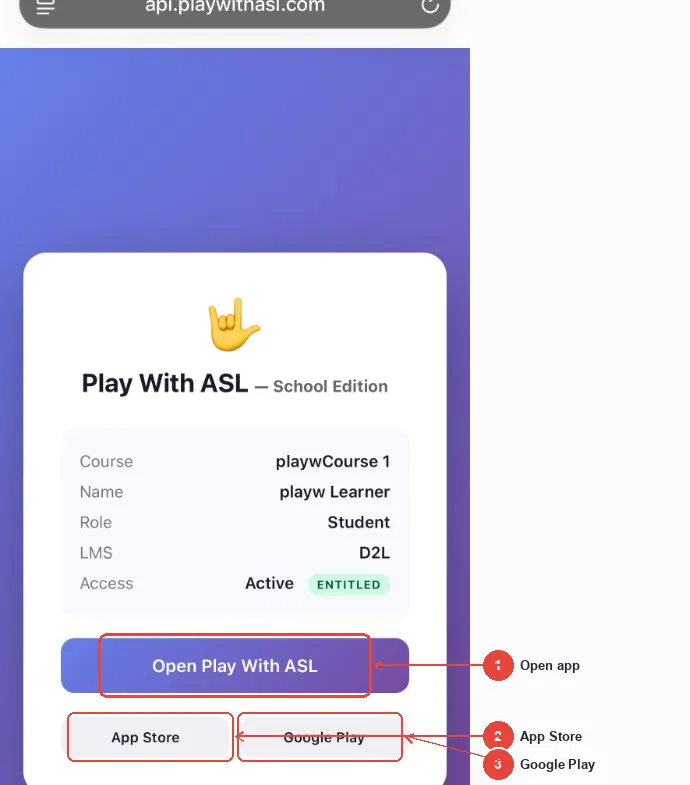
Once the app opens, the assigned activity loads automatically. Students complete practice in the app. When they finish, the result can sync back to your gradebook.
4. Where scores appear in your gradebook
After a student completes the assigned activity in the School Edition app, Play With ASL can send the score with LTI Assignment and Grade Services (AGS 2.0) — part of our 1EdTech LTI Advantage Complete certification.
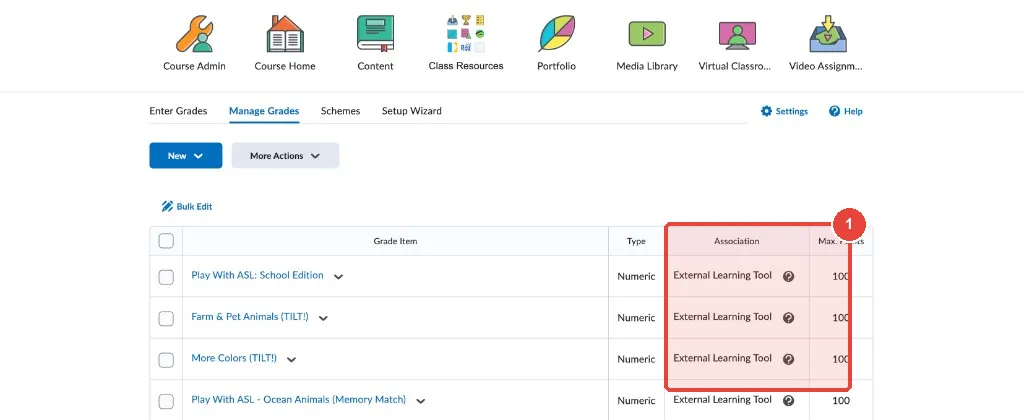
Brightspace creates a numeric grade item (typically 100 points) associated with the External Learning Tool for each deep-linked assignment. You can review items under Manage Grades.
On the content item itself, Completion Summary shows which learners have completed the activity; use Go To Gradebook for score detail.
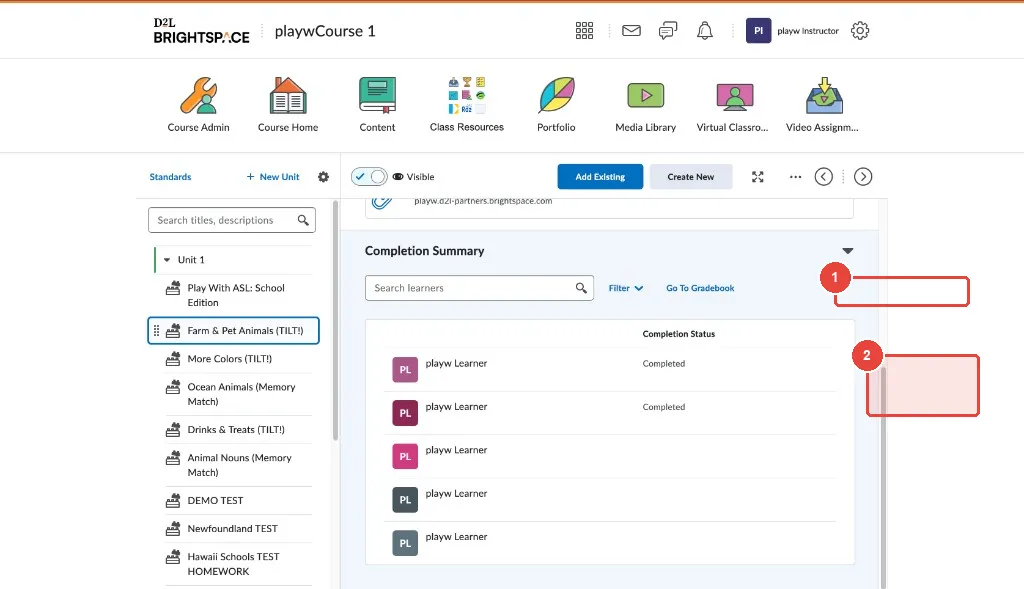
- Scores post to the Brightspace grade item tied to that LTI link.
- Memory Match and Multiple Choice post a percent of the assignment’s points. Stars in the game are a student reward; the gradebook uses the curve behind them, and a higher raw score never lowers the grade.
- TILT! does not post a skill grade. Treat TILT! practice as volume; pass/fail and in-person production stay with you.
- If your LMS admin enabled Auto Create Grade Items when deploying the tool, Brightspace can create the column for you.
- Allow a few minutes, then refresh Grades if needed.
- Students must launch from the course link, not a bookmark, for grade sync to work reliably.
5. Common troubleshooting
| Symptom | Likely cause | What to do |
|---|---|---|
| Tool missing from Add Existing or the content picker | Not deployed to the course, or the placement is not enabled | Contact your LMS admin |
| Student expects to play inside Brightspace | Expected. Play happens in the School Edition app | Point them to Open Link → handoff page (QR code or magic link on a computer; Open Play With ASL on a phone) |
| QR code or magic link expired, or won’t open the app | Magic links expire after about five minutes, or the app is not installed | Relaunch from the Brightspace course link; install the School Edition app from the App Store or Google Play |
| Student sees an access screen instead of the activity | No active Play With ASL seat for that student. Launching from Brightspace signs them in but does not grant gameplay on its own | Ask whoever manages your school’s Play With ASL license to assign a seat. K–12 students are never asked to pay. |
| Grade missing after they finish in the app | Student didn’t launch from the course link, grading was off when you set up the assignment, or the activity was TILT! (no skill grade is posted) | Wait a few minutes and refresh Grades. Confirm they used the course link. If it persists, contact your LMS admin. |
| Wrong role (teacher sees the student view, or the reverse) | Role not sent, or mismapped, by Brightspace | Unrecognized roles default to student. Log out of Brightspace and relaunch from the course. If it persists, ask your LMS admin to check the enrollment role and Send User Role. |
| Wrong preset opens in the app | Wrong Curriculum Wizard selection, or a stale link | Reopen the Curriculum Wizard and reselect the preset |
Support
| You never need | A Play With ASL password, or any of the registration values on the admin guide |
|---|---|
| You do need | The tool deployed by your LMS admin, and the Curriculum Wizard to place the link |
| Students need | An active Play With ASL seat, the School Edition app, and the course link (Open Link → handoff page) |
For registration or deployment issues, start with your LMS admin and the Brightspace Admin Deployment Guide. Product questions: support@playwithasl.com · Contact.