Level UP Your Classroom

Educator guides for the games, the LMS, and the practice layer next to the curriculum you already teach.

TILT!

Get moving, signing, and collaborating — five classroom tutorials.

When in class
Warm-ups, stations, full-period play, and homework.
For which level
Customize category, difficulty, and timer. Fingerspell mode is the extra challenge for upper-level courses.
How to assign
Play in class, or Deep Link a pack from your LTI 1.3 LMS so students launch from the assignment.
How scores come back
When the assignment is an LTI launch with Assignment & Grade Services (AGS) 2.0, scores pass back to the LMS gradebook.
What this is not
Not a curriculum. TILT! builds both expressive and receptive skill — it does not replace a signed production assessment you still run yourself.

Welcome to TILT!

Get ready to experience ASL learning like never before.

Thumbnail for Welcome to TILT!

In this short video, we introduce you to TILT! — our interactive game that brings vocabulary to life. This unique game requires both expressive and receptive skills in a fun setting. Whether you're a teacher, parent, or student, TILT! is designed to boost engagement, reinforce learning, and make ASL fun and unforgettable.

Setting Up the Game

Customize your game to meet your students' needs.

Thumbnail for Setting Up the Game

In this video, we walk you through how to choose your category, set difficulty levels, and adjust timers. You'll learn how to create the ideal environment for in-class play, homework assignments, or small group activities. Setup takes just seconds — but the impact lasts much longer.

Playing the Game

Here's where the fun begins.

Thumbnail for Playing the Game

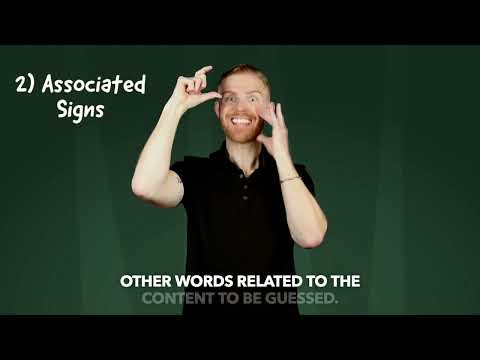
This video shows how TILT! transforms ASL learning through interactive gameplay. We cover four engaging modes — Fingerspelling, Associated Signs, Acting, and Classifiers — that build both expressive and receptive skills. Whether your students are spelling, signing, acting, or describing, TILT! offers countless ways to reinforce vocabulary while keeping things collaborative and fun.

Classroom Implementation

Make ASL part of your daily classroom flow.

Thumbnail for Classroom Implementation

This video provides real-world examples of how educators are using Play With ASL and TILT! in their lesson plans. From warm-ups and centers to full-period activities, discover flexible ways to bring ASL into your curriculum — without needing extra prep time.

Let the Learning Begin!

You're ready — your students are too.

Thumbnail for Let the Learning Begin!

With everything set up, it's time to launch your first game and see the magic happen. This video includes tips for introducing Play With ASL to your students and creating a classroom culture where play drives progress. Let's start building ASL fluency, one game at a time.

Multiple Choice

Same handshape. Different meaning. Real learning.

Receptive-comprehension practice — watch a sign and pick the right answer from four look-alike options.

When in class
Bell ringer, formative check, homework, unit review, or a weekly challenge pack.
For which level
Easy for ASL 1 / beginners (20s, subtitles). Normal for ASL 2 (10s, no subtitles). Hard for ASL 3+ and interpreting prep (7s, tighter distractors).
How to assign
Deep Link → Multiple Choice → pack → difficulty. Students launch from the LMS. Same pack can be assigned Easy, then Normal, then Hard across a week.
How scores come back
AGS 2.0 passback. 80% accuracy = completed in the gradebook. Wrong answers score 0 — never negative.
What this is not
Not an expressive assessment, not a curriculum, and not a how-to video series yet. Pair it with a sign-production check you already run.
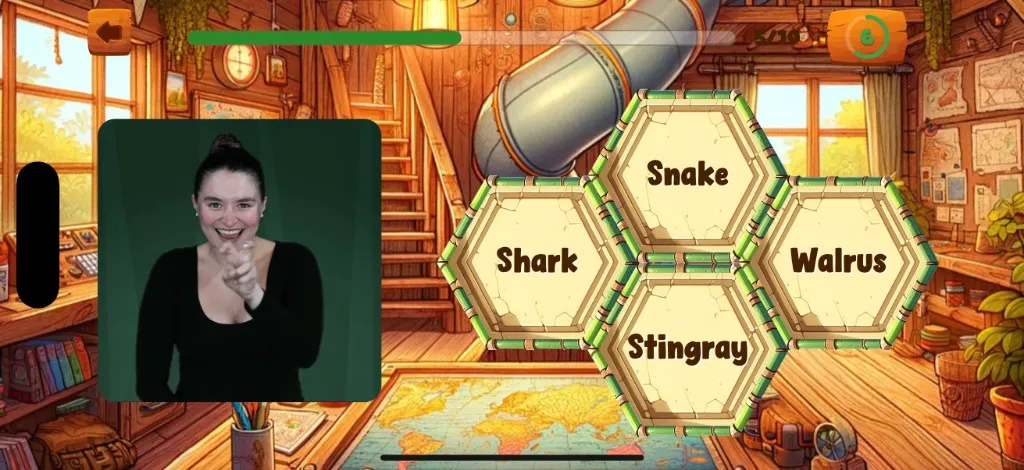
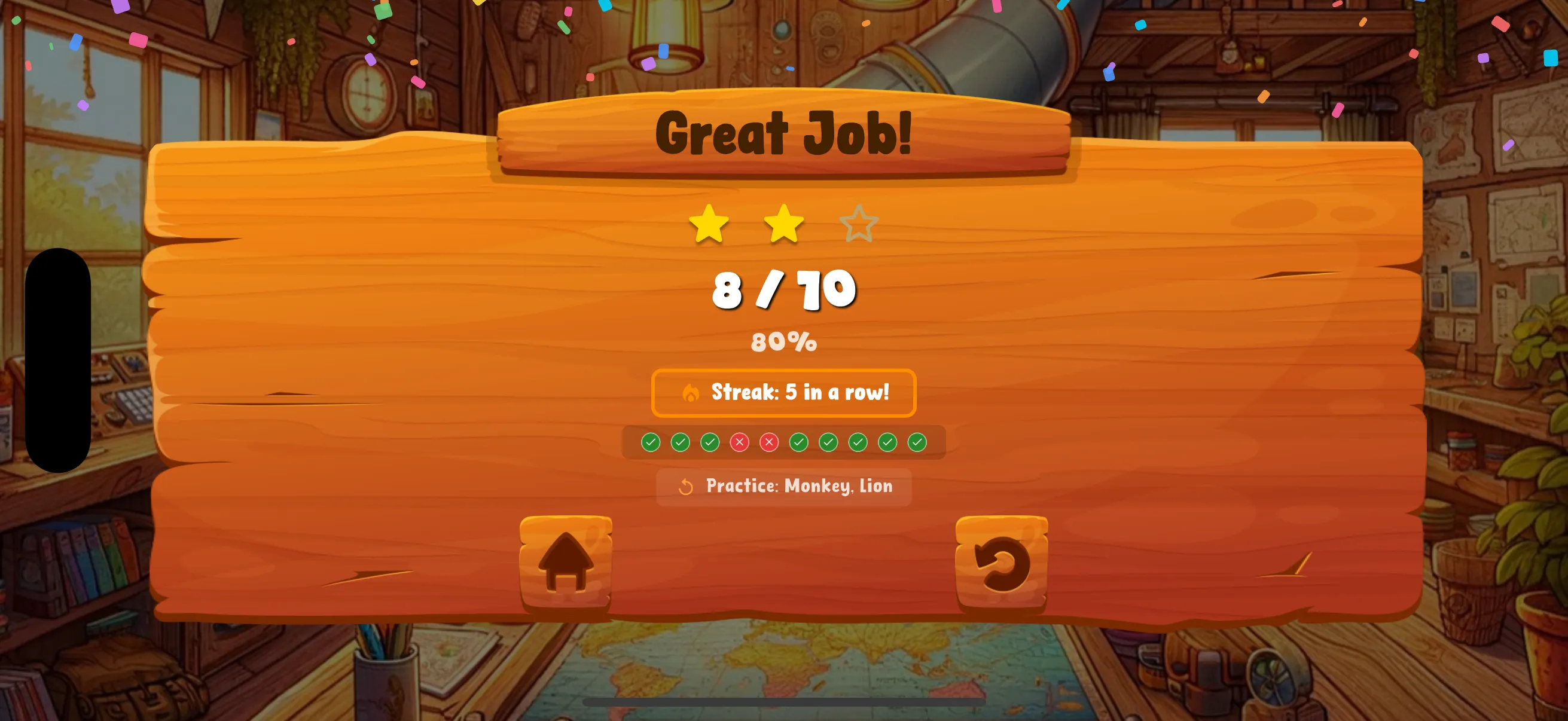
Multiple Choice board: a Deaf signer on the left and four look-alike English answers on hexagonal tiles — Snake, Shark, Walrus, and Stingray.Multiple Choice picture round: an elephant photograph on the left and four Deaf signers as answer choices.Multiple Choice results board showing 8 out of 10, 80 percent, and a five-in-a-row streak.
Gameplay stills — what the board looks like. Not a how-to video.

Easy

20s, subtitles

ASL 1 / beginners

Builds confidence and introduces discrimination. Start here when students are still building basic vocabulary.

Normal

10s, no subtitles

ASL 2 / intermediate

Natural signing speed and a broader distractor pool — for students who recognize most signs but confuse similar ones.

Hard

7s, no subtitles

ASL 3+ / advanced

Tighter timer and more confusable distractors — the discrimination needed for live receptive work and interpreting prep.

  1. Bell ringer / warm-up (5 minutes)

    Start class with a quick round on Easy. Pick the vocabulary pack that matches your current unit. The 20-second timer is generous enough to avoid frustration while still getting brains engaged. It activates prior knowledge and surfaces forgotten vocabulary before the lesson reinforces it.

  2. Formative check with an 80% threshold

    Assign a specific pack on Normal through your LMS using Deep Linking. The 80% threshold gives a clean completed / not-completed signal for the gradebook, while individual misses tell you which signs students are confusing.

  3. Differentiate Easy / Normal / Hard

    Students who struggle at Normal can drop to Easy without penalty. Students who ace Easy can self-select up. The non-punitive design (zero for wrong, never negative) makes that natural. When in doubt, start one level lower than you think.

  4. Homework that is still practice

    Assign two or three packs per week. Students play on their own time and device. The streak system rewards consistency over perfection. Pro move from the classroom guide: Monday Easy, Wednesday Normal, Friday attempt Hard — same pack, visible growth.

  5. Unit review — then pair with expressive assessment

    Before a unit exam, assign the relevant pack on Hard. Signs they miss in Multiple Choice are the ones to focus on in class. Multiple Choice covers receptive discrimination; you still cover expressive production.

  6. Peer challenge (optional)

    A weekly challenge pack on Hard stays positive because scoring never goes negative. Students celebrate streaks, not perfection.

Memory Match

Visual matching — pair ASL signs with their meanings on the same vocabulary library as TILT! and Multiple Choice.

When in class
Five-minute warm-ups, one station in a rotation, independent practice, and homework.
For which level
Recommended starting point for non-signers and partial signers. Mix with TILT! so mixed-level rooms stay challenged without extra prep.
How to assign
Pick the pack that matches your current unit. For homework, Deep Link the pack from an LTI 1.3 LMS so students launch the right game.
How scores come back
Accuracy, speed, and completion are tracked. On an LTI assignment with AGS 2.0, scores pass back to the gradebook — no manual entry.
What this is not
Not a how-to video series yet (TILT! has that five-video classroom set). Not a curriculum. Not a substitute for the expressive work you still do with students.
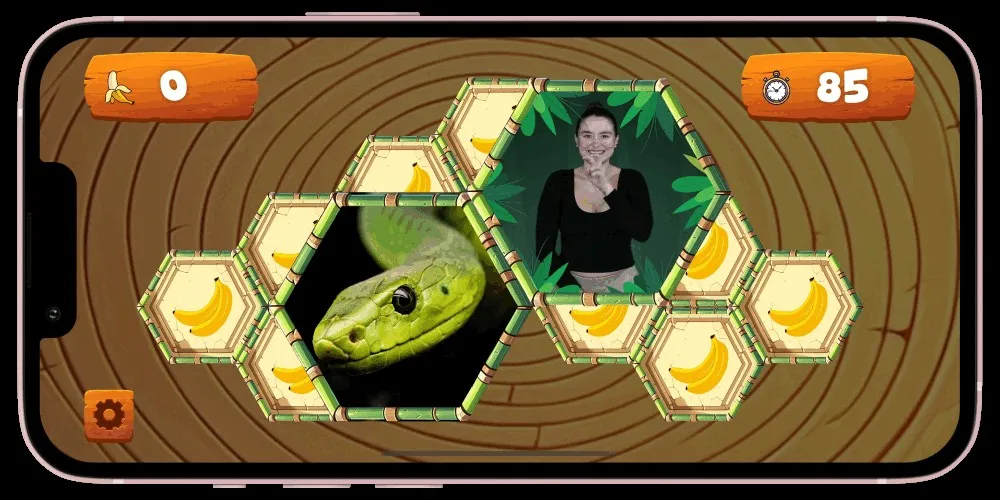
Memory Match board pairing a snake photograph with a Deaf signer on hexagonal tiles, score and timer visible.
Gameplay still — what the board looks like. Not a how-to video.
  1. Vocabulary warm-up (5 minutes)

    Start class with a quick round of Memory Match. Pick the vocabulary pack that matches your current unit and give students three to five minutes. It activates prior knowledge, gets students focused, and sets a playful tone. In upper-level courses, follow with TILT! Fingerspell if you want an extra challenge — that is a mode, not a newer product.

  2. Station rotations

    Set Memory Match as one station. While one group works with you on expressive practice, another group can work through Play With ASL independently. The built-in progression keeps students challenged without direct instruction — especially in mixed-level classrooms.

  3. Homework and independent practice

    Assign specific vocabulary packs through your LMS using Deep Linking. With LTI Advantage services, grades can flow back to your gradebook. Students get practice that feels like a game, not a worksheet.

  4. Progress checks

    Use score tracking — accuracy, speed, and completion — as quantitative signals alongside the observational assessments you already do. Pair with a video-based sign-production check for a well-rounded picture.

  5. Peer TILT! for expressive work

    Memory Match is visual matching. For peer interaction, TILT! Act and Guess modes have students take turns — one produces the sign while the other guesses — so expressive and receptive skill show up in the same period.

LTI & LMS Integration

Register the tool once, then teachers assign specific games from the LMS they already use.

When in class
After your LMS admin registers Play With ASL as an LTI 1.3 tool — then every time you create a practice assignment.
For which level
Any course that already lives in Canvas, Schoology, Brightspace, Blackboard, Moodle, or another LTI 1.3-compliant LMS.
How to assign
In the LMS, add Play With ASL (Deep Linking 2.0). Choose the game and vocabulary pack. The link becomes the assignment. Students click it — no separate accounts.
How scores come back
Assignment & Grade Services 2.0 sends completion and progress back to the LMS gradebook. Names & Role Provisioning 2.0 keeps the roster in sync.
What this is not
Google Classroom is not LTI 1.3, so Deep Linking and automatic grade passback do not run inside Classroom itself. We do not publish Canvas Developer Key JSON on this page.
  1. What Advantage Complete covers

    Play With ASL is 1EdTech LTI Advantage Complete certified (registration IMSD2C6C25C26C27pl2026W1, awarded April 21, 2026). That umbrella is four services: LTI 1.3 Tool (secure launch and single sign-on), Deep Linking 2.0 (teachers pick specific content), Assignment & Grade Services 2.0 (scores return to the gradebook), and Names & Role Provisioning 2.0 (roster sync).

  2. Instructor: assign a game

    Once the tool is registered for your institution: open the course → add Play With ASL as an external activity → use Deep Linking to choose the game (Memory Match, TILT!, or Multiple Choice) and the vocabulary pack. Students launch from that assignment. Identity, course, and assignment metadata arrive with them. For Brightspace, the course path is Content → Add Existing Activities → External Learning Tools → Play With ASL.

  3. How scores come back

    When students finish the activity, AGS 2.0 posts the result to the LMS gradebook. Teachers do not re-type scores. If grades do not appear, the usual cause is AGS not enabled on the tool, or the assignment was launched without AGS context — your admin guide covers that check.

  4. Google Classroom and other non-LTI-1.3 setups

    Google Classroom does not support LTI 1.3, so Curriculum Wizard one-click Deep Linking and automatic grade passback are not available inside Classroom. Work with Magic-URL assignment links (paste a Play With ASL link into the Classroom assignment), class redemption codes, and the teacher progress dashboard with CSV export for bulk grade entry.

Product walkthrough

Curriculum Wizard — product walkthrough

How the LMS flow works: browse presets, customize an assignment, and send it into the course shell.

Product walkthrough — teacher/admin steps in the Curriculum Wizard. This is not a classroom-implementation tutorial.

Curriculum Guides

Play With ASL is the practice layer next to the ASL curriculum you already teach — not a replacement for it.

When in class
Warm-ups, stations, homework, and formative checks that reinforce the unit you are already in.
For which level
K–12 and higher ed. You stay in charge of instructional design and pacing.
How to assign
In School Edition, pick a Curriculum Wizard preset or build a custom assignment, then send it into the course shell.
How scores come back
Where the LMS supports LTI Advantage services, game scores can pass back to the gradebook as one more practice signal.
What this is not
Not a full ASL curriculum, not a scope-and-sequence product, and not a publisher partnership or official unit map for Signing Naturally, TruWay ASL, or any other program.
  1. We complement; we don’t replace

    Short version: we make your existing ASL curriculum work harder in class and at home. Signing Naturally, TruWay ASL, Master ASL!, ASL DEAFined, BGC, or a program you built yourself stay the curriculum. Play With ASL sits alongside them as game-based vocabulary practice.

  2. What teachers actually do

    Keep your scope and sequence. Use the Curriculum Wizard to browse practice presets or customize an assignment, then launch from an LTI 1.3 LMS. Students practice through play on the vocabulary and skills you assigned — not a second curriculum competing with yours.

  3. What we do not publish

    We do not publish unit maps, authorized editions, or claimed one-to-one alignments to someone else’s textbook. If you do not see your program in the preset list, say so on a demo — teachers can also build custom presets for whatever they teach.

Assessment & Grading

Formative practice signals plus automatic grade passback — not a replacement for the assessments you already trust.

When in class
Formative checks during a unit, homework completion, and a Hard-mode review before a live receptive or production exam.
For which level
Match the game to the skill: Memory Match for visual recognition, Multiple Choice for receptive discrimination (80% = complete), TILT! when you want expressive/collaborative evidence too.
How to assign
Deep Link the game + pack from your LTI 1.3 LMS. Set difficulty (and the 80% Multiple Choice threshold) before students launch.
How scores come back
AGS 2.0 writes completion and progress into the LMS gradebook. Accuracy, speed, and completion are the quantitative layer next to your observational notes.
What this is not
Not a substitute for expressive (sign-production) assessment. Not automatic grade passback inside Google Classroom.
  1. Formative, not the whole grade

    Use game scores to supplement assessment — accuracy, speed, and completion as quantitative points next to what you already observe. Multiple Choice on Normal, Deep Linked from the LMS, gives a clean 80% completed signal and shows which look-alike signs students confuse.

  2. Pair receptive practice with expressive assessment

    Multiple Choice and Memory Match cover recognition. You still run a signed production check — video, in-class, or peer TILT! Act and Guess — so the gradebook is not only receptive.

  3. How AGS passback works

    On an LTI 1.3 launch with Assignment & Grade Services 2.0 enabled, the student’s result posts to the LMS gradebook. No re-typing. Canvas, Schoology, Brightspace, Blackboard, Moodle, and other LTI 1.3 systems can do this; Google Classroom cannot, so use the teacher dashboard and CSV there.

Product walkthrough

LTI launch and grade passback — product walkthrough

How the LMS flow works: teacher creates the assignment, student launches with single sign-on, score returns via AGS 2.0.

Product walkthrough — LMS launch and grade passback. This is not a classroom-implementation tutorial.

Accessibility & Inclusion

Trust, hosting, certifications, and accessibility documentation for institutional review.