
Overview
Welcome. This guide walks a Canvas root-account administrator through registering Play With ASL: School Edition as an LTI 1.3 tool, then hands off to a teacher for the first assignment. Plan on one sitting for the admin half; the teacher half takes a few minutes.
Play With ASL is certified for 1EdTech LTI Advantage Complete (LTI 1.3 Core, Deep Linking 2.0, Assignment and Grade Services 2.0, Names and Role Provisioning Services 2.0). You can confirm the listing at https://site.imsglobal.org/certifications/playwithasl.
Registration is a short manual process: you create an LTI Developer Key, paste our JSON, turn the key on, and install it By Client ID. Play With ASL is not an Instructure partner, so there is no global key to inherit and Dynamic Registration is not part of this path.
This guide covers Canvas Cloud production. Canvas Cloud uses one shared issuer for every school, so the values that identify your school are the Client ID and Deployment ID; you will send those to us at the end. The details are under OIDC, JWKS, and redirect URLs.
Prerequisites
- A Canvas root-account Admin account. Developer Keys live on the root account, so this part needs an admin rather than a teacher.
- A sandbox or practice course for the first placement. Keep real rosters and live gradebooks out of it until you have seen the Curriculum Wizard open.
- A few minutes at the end to send us three values: Client ID, Deployment ID, and iss, plus your Canvas hostname. Institution-specific values shows where each one comes from.
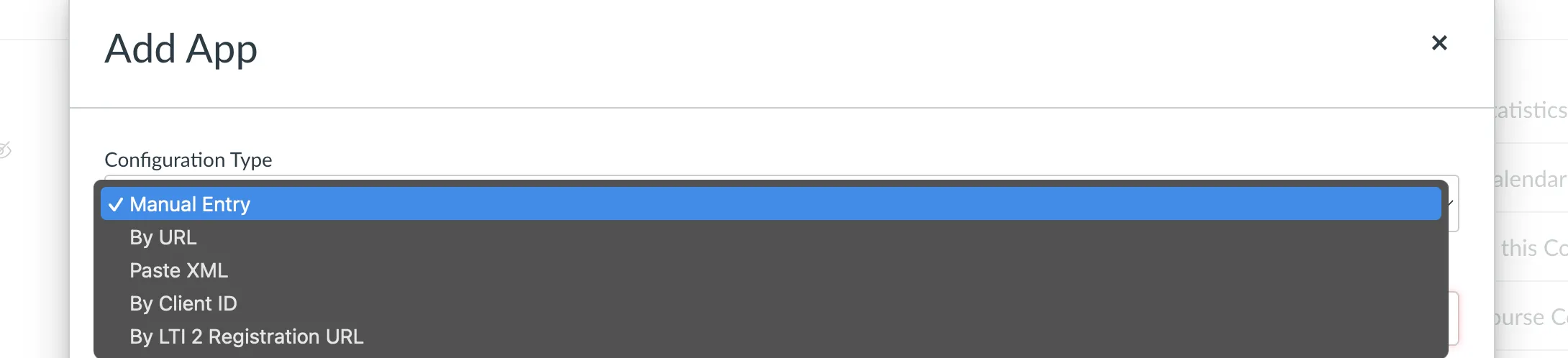
- The registration method is Enter JSON, then By Client ID. Skip Manual Entry; everything Canvas needs is in the JSON. (If you also run Brightspace, this is a different flow from its “Register Tool.”)
Register the Tool
- Sign in as a root-account Admin.
- Go to Admin → Developer Keys → + Developer Key → + LTI Key.
- Choose Enter JSON and paste the JSON from the next section. Leave Selection Width and Selection Height exactly as they arrive: 1280 and 900.
- Save the key, then switch its state to ON.
-
Confirm
assignment_selectionandlink_selectionboth show 1280 × 900. -
Hard-refresh with the cache disabled. Canvas caches
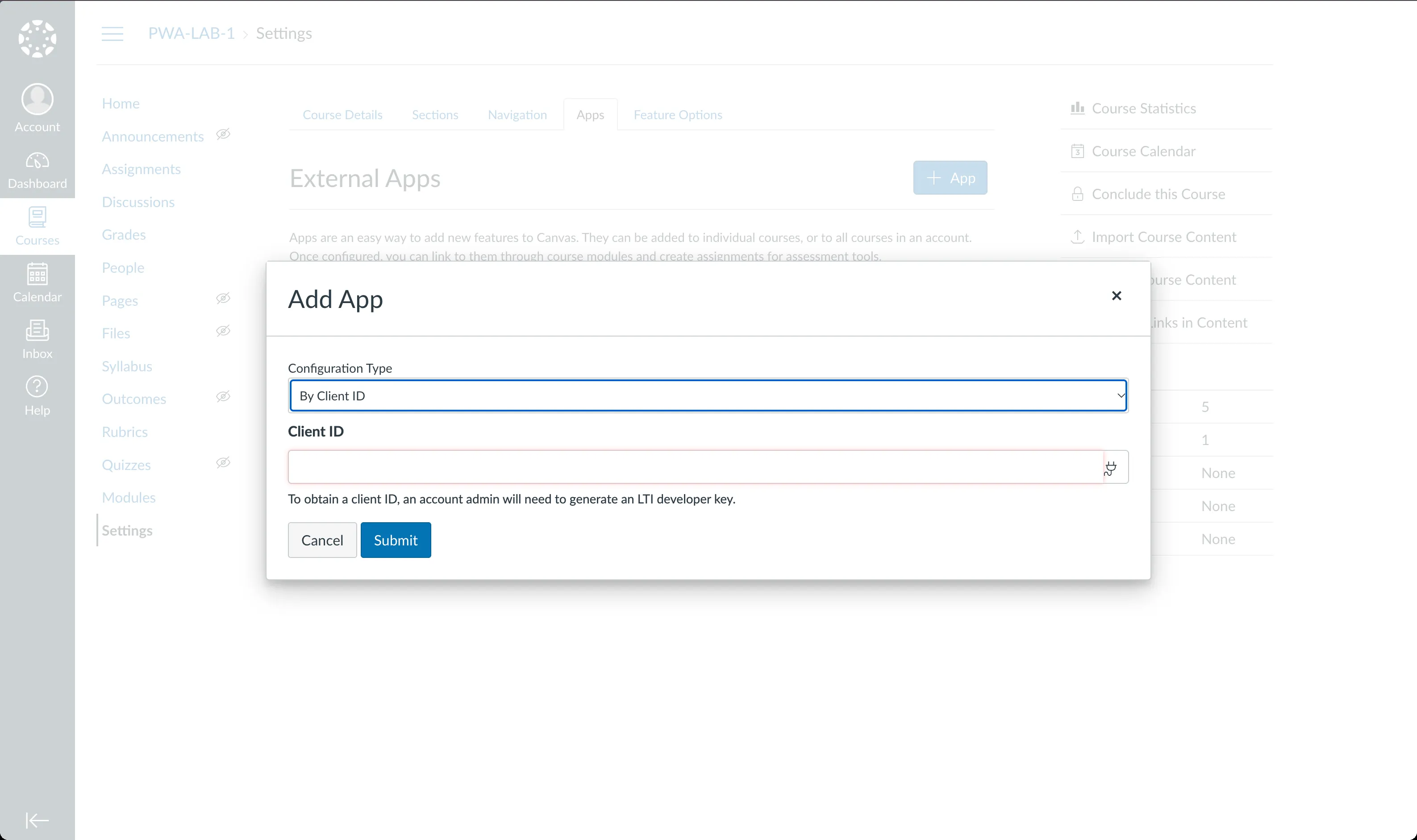
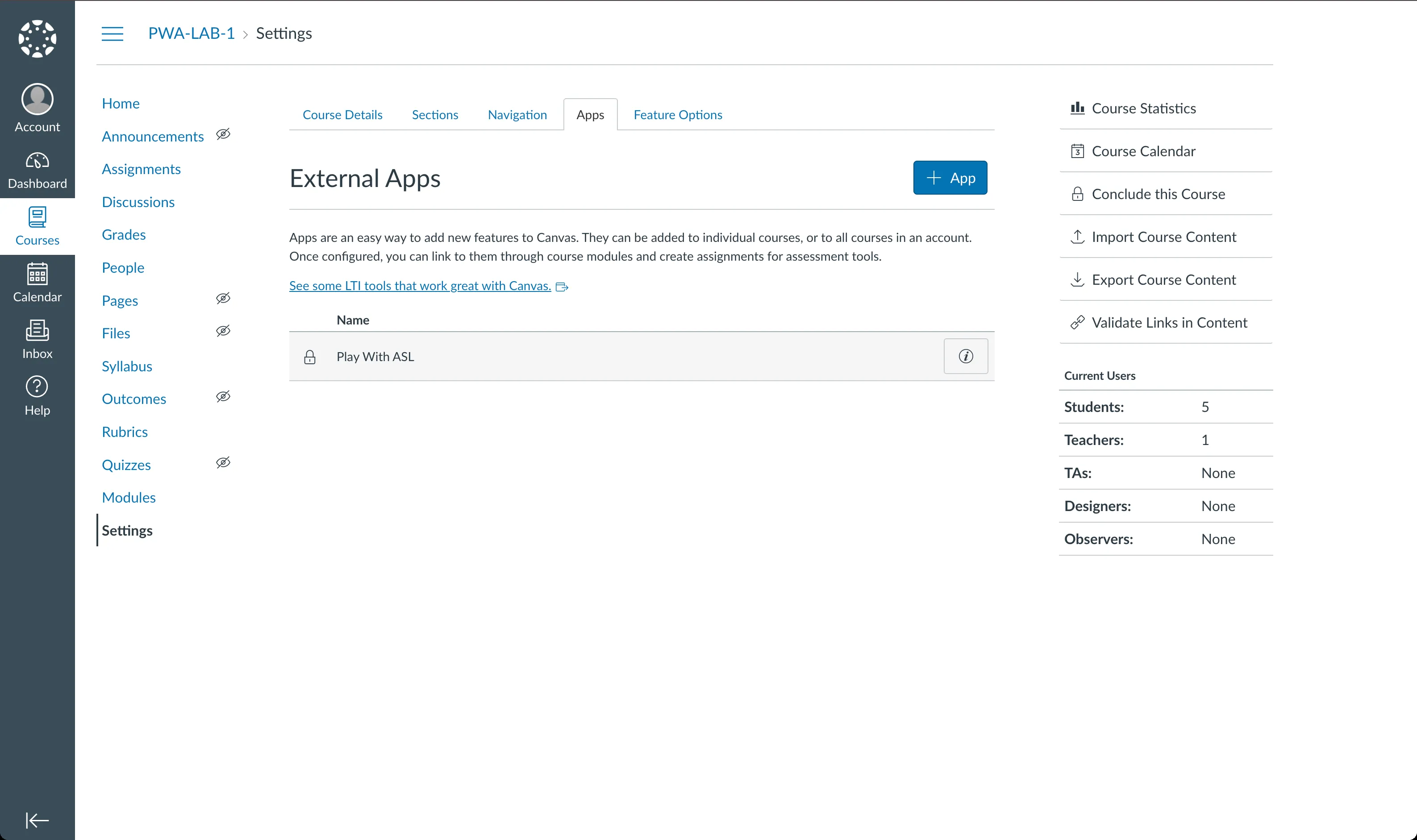
launch_definitionsfor ten minutes (max-age=600), and a stale copy keeps the old window size. - In the account or your practice course, go to Settings → Apps → + App, choose By Client ID, paste the numeric Developer Key id, and install.
- Copy the Client ID (the same Developer Key id) and the Deployment ID from the installed app.
- Send us the Client ID, Deployment ID, and iss, plus your Canvas hostname, through Contact or support@playwithasl.com. We register your school on our side and confirm by email; launches start working once that registration is in place.
Paste JSON
Paste this file unchanged when you create the LTI Developer Key. It
already points at our production endpoints on
api.playwithasl.com.
Download the JSON file.
{
  "title": "Play With ASL",
  "description": "Teach With ASL / Play With ASL School Edition LTI 1.3 Advantage tool. Paste this JSON when creating a Canvas Developer Key (LTI Key) via By Client ID. Public endpoints are the certified tool surface.",
  "oidc_initiation_url": "https://api.playwithasl.com/lti/login",
  "target_link_uri": "https://api.playwithasl.com/lti/launch",
  "public_jwk_url": "https://api.playwithasl.com/api/lti/jwks",
  "scopes": [
    "https://purl.imsglobal.org/spec/lti-ags/scope/lineitem",
    "https://purl.imsglobal.org/spec/lti-ags/scope/lineitem.readonly",
    "https://purl.imsglobal.org/spec/lti-ags/scope/score",
    "https://purl.imsglobal.org/spec/lti-ags/scope/result.readonly",
    "https://purl.imsglobal.org/spec/lti-nrps/scope/contextmembership.readonly"
  ],
  "extensions": [
    {
      "domain": "api.playwithasl.com",
      "tool_id": "play-with-asl",
      "platform": "canvas.instructure.com",
      "privacy_level": "public",
      "settings": {
        "text": "Play With ASL",
        "selection_height": 900,
        "selection_width": 1280,
        "placements": [
          {
            "placement": "assignment_selection",
            "message_type": "LtiDeepLinkingRequest",
            "text": "Play With ASL",
            "target_link_uri": "https://api.playwithasl.com/lti/launch",
            "selection_height": 900,
            "selection_width": 1280
          },
          {
            "placement": "link_selection",
            "message_type": "LtiDeepLinkingRequest",
            "text": "Play With ASL",
            "target_link_uri": "https://api.playwithasl.com/lti/launch",
            "selection_height": 900,
            "selection_width": 1280
          },
          {
            "placement": "course_navigation",
            "message_type": "LtiResourceLinkRequest",
            "text": "Play With ASL",
            "target_link_uri": "https://api.playwithasl.com/lti/launch",
            "selection_height": 800,
            "selection_width": 1000
          }
        ]
      }
    }
  ],
  "custom_fields": {
    "canvas_api_domain": "$Canvas.api.domain"
  }
}
Keep 1280 × 900. The JSON sets
selection_width 1280 and
selection_height 900 on
assignment_selection, link_selection, and
the tool settings. If those fields end up empty, Canvas falls back
to 800 × 400 and the Find window opens too small to
show any packs. course_navigation in the same JSON is a
separate 1000 × 800 link for the course menu; the Curriculum Wizard
comes from the assignment placements, so teachers should use Find
rather than Course Navigation when placing content.
Install By Client ID
Once the key is ON, install it from + App and choose By Client ID. The Client ID is all Canvas needs here.
Basic Tool Information
For reference, this is what the JSON registers. Nothing here needs to be typed by hand.
| Tool name | Play With ASL |
|---|---|
| Description | Teach With ASL / Play With ASL School Edition LTI 1.3 Advantage tool |
| Domain | api.playwithasl.com |
| Privacy | Public (set in the JSON) |
| Placements | assignment_selection and link_selection open the Curriculum Wizard (Deep Linking, 1280 × 900). course_navigation is a separate 1000 × 800 course-menu link. |
| Services | Assignment and Grade Services (line item, score, result) and Names and Role Provisioning (context membership), matching the JSON scopes |
OIDC, JWKS, and redirect URLs
These are the production endpoints the JSON already contains. Deep
Linking uses the same target link URI with message type
LtiDeepLinkingRequest, so there is one redirect to
register.
| OIDC login initiation | https:
/ |
|---|---|
| Target link URI / redirect | https:
/ |
| Keyset URL (JWKS) | https:
/ |
| Domain | api.playwithasl.com |
Canvas Cloud production uses the platform values below. You do not
paste these anywhere; we keep them on our side. Two things worth
knowing: iss is the shared
https://canvas.instructure.com for every Cloud school,
and the OIDC authorize, token, and JWKS endpoints live on
sso.canvaslms.com rather than on your school’s
hostname.
| iss | https:
/ |
|---|---|
| OIDC authorize | https:
/ |
| Token | https:
/ |
| Platform JWKS | https:
/ |
Canvas beta and test environments use different iss and
sso hosts and are outside this guide.
Institution-specific values
Canvas generates the Client ID and Deployment ID when you create and
install the key; copy them straight from Canvas. We match your
launches on Client ID, Deployment ID, and iss together.
Your hostname helps us label your account, but it is not the
iss; that stays
https://canvas.instructure.com.
| Client ID | The numeric Developer Key id, copied from Canvas |
|---|---|
| Deployment ID | Shown on the installed app after the By Client ID step |
| iss | https://canvas.instructure.com |
| Hostname | Your school’s Canvas address, for example something.instructure.com. Send it along for our records; the iss above is what Canvas uses for sign-in. |
Leave out passwords, launch JWTs, and student emails. We never need them.
Teachers: Add the First Assignment
Once we confirm your registration, a teacher takes it from here. This is the part that proves the setup end to end, so have a teacher do it rather than the admin.
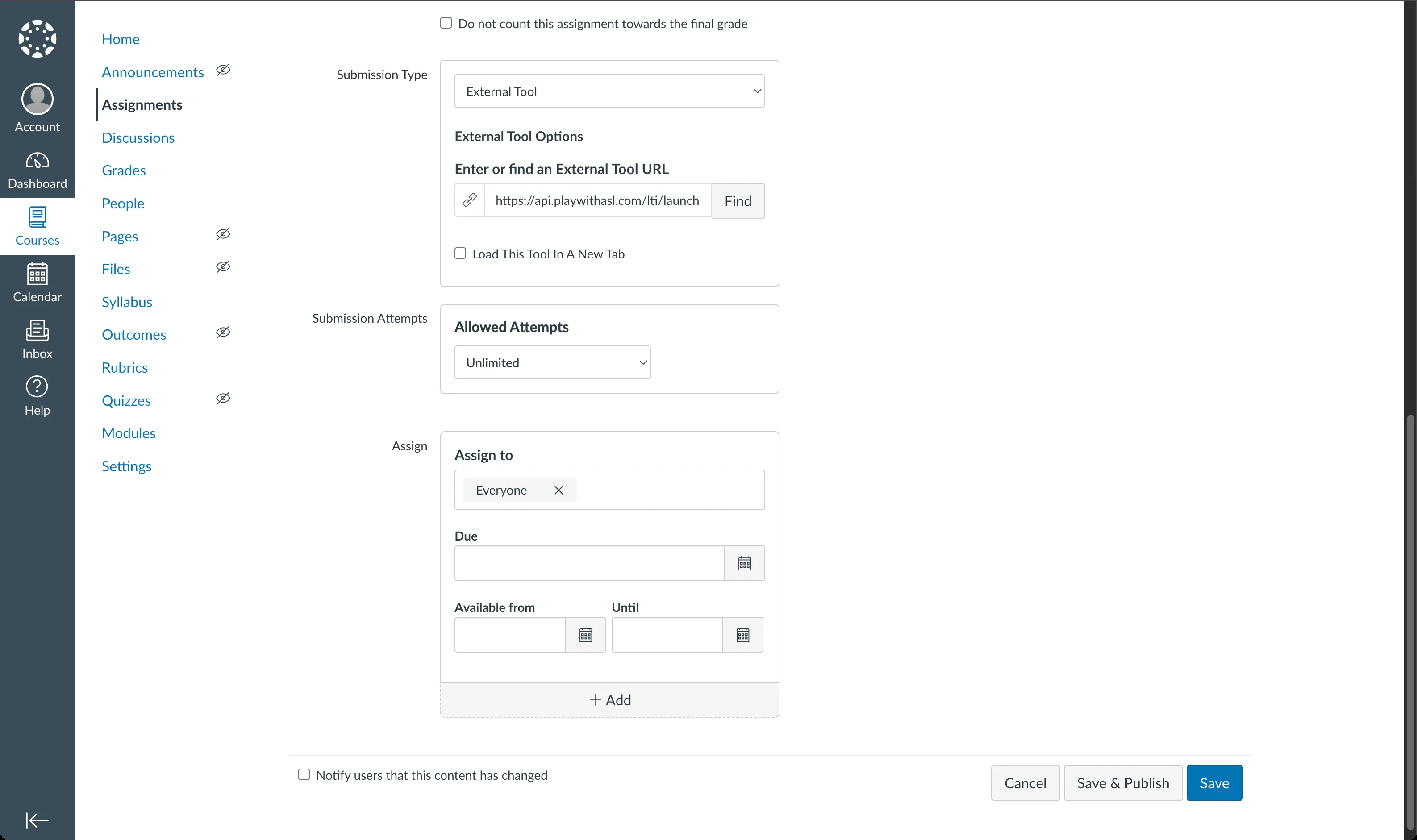
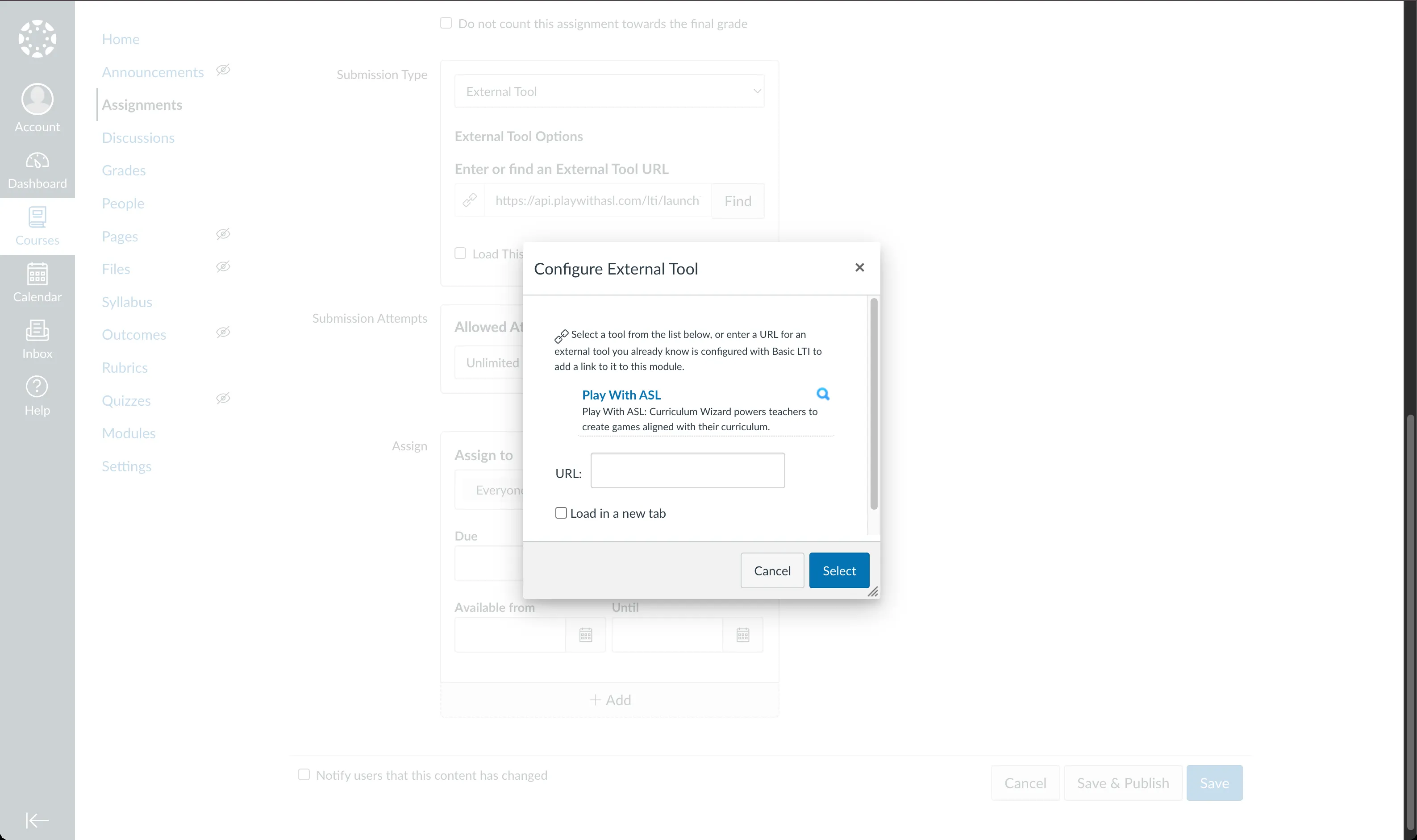
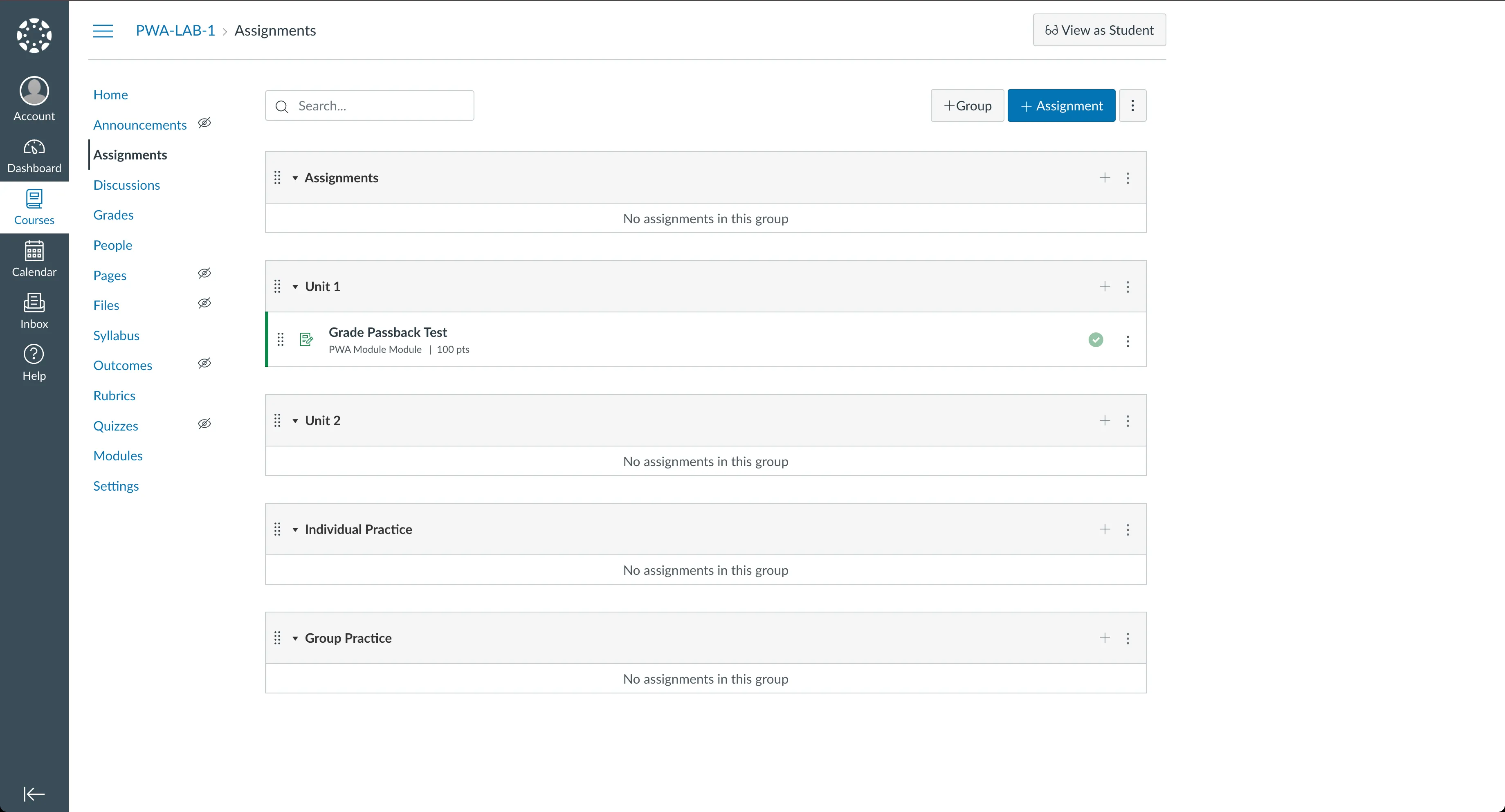
- Open the course, go to Assignments, and add an assignment.
- Set Submission Type to External Tool.
- Click Find.
- Choose Play With ASL.
-
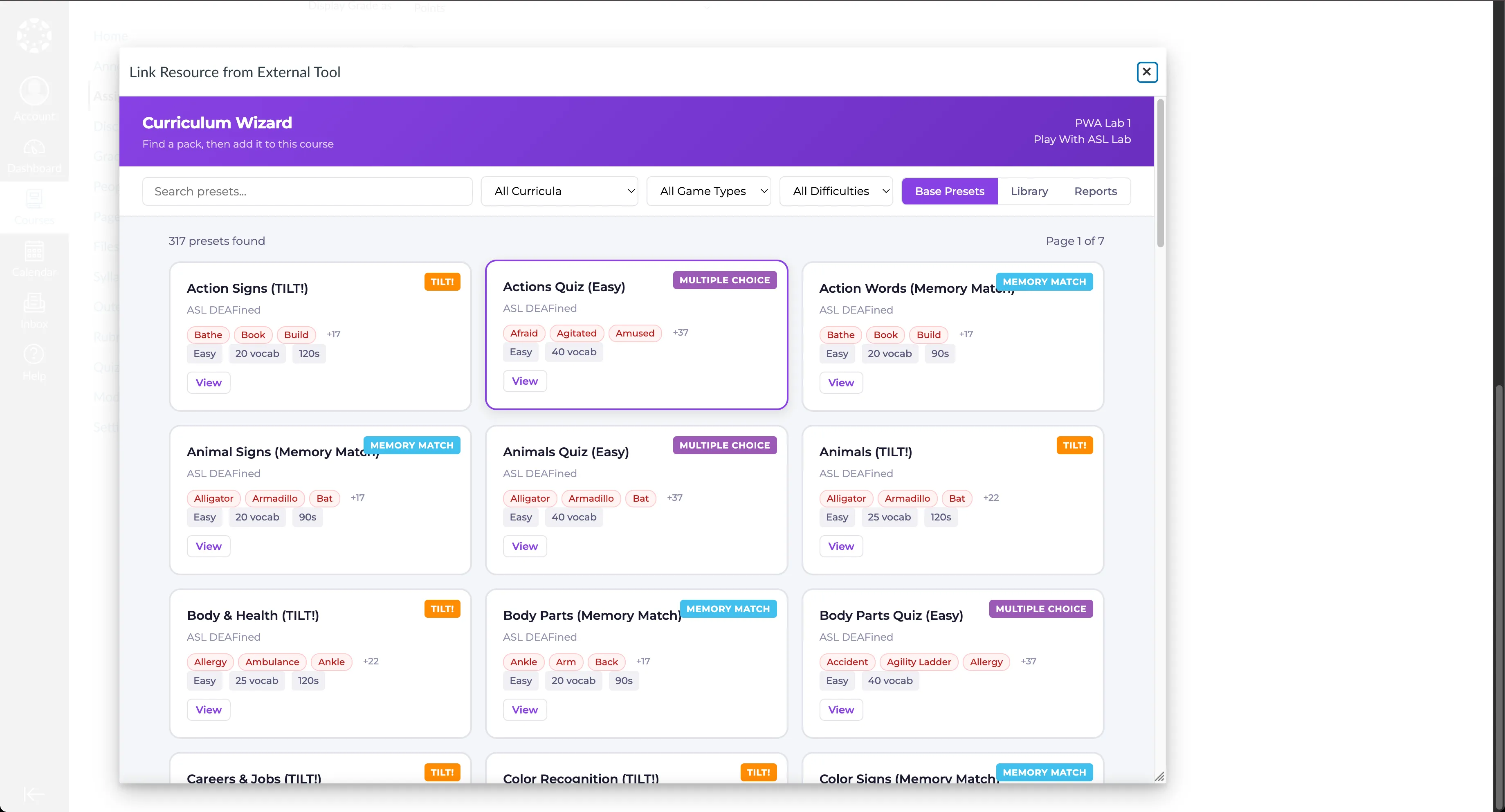
The Curriculum Wizard opens inside
Link Resource from External Tool. (Behind the
scenes, that is Canvas sending an
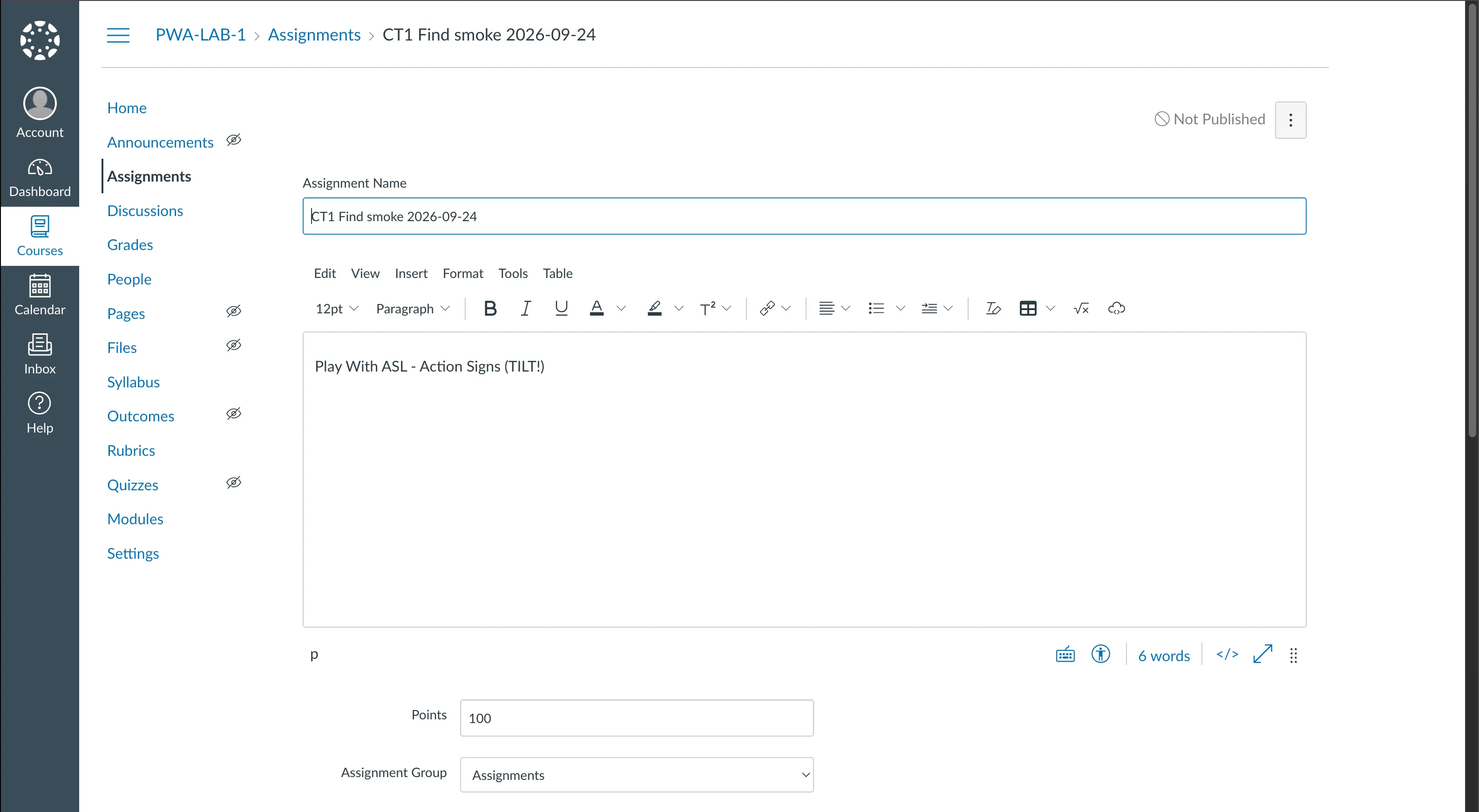
LtiDeepLinkingRequestonassignment_selection.) - Pick a pack and click Add to Course.
- Save the assignment.
Use Find rather than the Course Navigation link; the wizard lives behind the assignment placements. An admin opening the tool from the account is a handy sanity check, but the teacher placement is the one that counts.
Check It Worked
Three things tell you the setup is good:
- Find opens the Curriculum Wizard and you can see pack cards. If the window is small and empty, see the first row under Troubleshooting.
-
The teacher can place one pack, and the assignment’s URL is the
production launch address on
api.playwithasl.com. - A student opening the assignment is a later, separate check. The wizard check above needs neither grade passback nor students in the course yet.
Your school’s first teacher placement is the real confirmation for your Canvas Cloud tenant; our own test environment does not stand in for it. Please let us know how it goes, either way.
Troubleshooting
| Find modal is tiny and shows no cards |
Selection width and height ended up empty, so Canvas used its
800 × 400 default. Re-paste the JSON (or set
1280 × 900 on
assignment_selection and
link_selection), save, then hard-refresh with the
cache disabled. Canvas holds the old size for up to ten minutes
(max-age=600).
|
|---|---|
Launch 400 UNKNOWN_PLATFORM |
The hostname reached us as iss. Cloud production
iss is
https://canvas.instructure.com; send us the
corrected value and we will update your registration.
|
Launch 400 AMBIGUOUS_PLATFORM |
Every Cloud school shares one iss, so we match
launches on Client ID. Check that the Client ID you sent
matches the installed key; we will never guess between
schools.
|
| Blank iframe |
A framing restriction. Production allows
https://*.instructure.com and
https://*.canvaslms.com. If your school uses a
vanity host such as canvas.school.edu, contact us
and we will add it before Find will render there.
|
| Authorize URL points at the school host |
Cloud OIDC, token, and JWKS endpoints are on
sso.canvaslms.com, not on
https://<school>.instructure.com/.
If a checklist suggests the school host, use the
sso values above.
|
| Grades do not appear | Grade passback happens on a later student launch, not at the Find step. Nothing is wrong if the wizard check shows no grades yet. |
| Third-party cookie warnings | OIDC state travels on the redirect, so a third-party cookie warning on its own does not mean the registration failed. If the wizard opened, you are fine. |
Support
We are glad to help. Reach us through https://www.playwithasl.com/contact or support@playwithasl.com. Including these up front saves a round trip:
- Canvas hostname
- Client ID
- Deployment ID
iss- Course name
- What you expected and what happened (an error code or screenshot helps)
Please leave out passwords and launch JWTs.
Thanks for bringing Play With ASL to your campus. Once your registration is confirmed, your teachers can go straight to Teachers: Add the First Assignment.